How To Learn Advanced Excel Fast

FAQ About Advanced Excel Training

Advanced Excel FAQ:
What is Advanced Excel, Why should you learn it, How to learn Advanced Excel in Singapore

– A Fast Start Guide to Becoming an Expert at Advanced Excel Skills

Every organization uses Microsoft Excel in their day to day work. Most employees & managers know Excel to some extent. And they are able to survive the day by doing things in one way or another… often the long and inefficient way.

Learning to use Microsoft Excel well goes beyond the basics. That’s where the Advanced Excel skills come in handy.

Microsoft has bundled in hundreds of useful functions and features, that can do wonders, save a lot of time, and improve your efficiency & productivity.

Each new version of Excel is packed with ever richer functionality, and provides more ways to use Excel to its utmost at any workplace.

Microsoft is striving to add those features that can simplify complex things, and make it easier to do data entry, perform computations, and even analyze data & present the insights into actionable information useful for clients and colleagues or the management in nicely created reports and dashboards.

So how come very few people are familiar with these Advanced Excel Features & Functions?

Do You Know These Advanced Excel Tips & Tricks?
Do You Know These Advanced Excel Tricks?

Partly because Microsoft is a software company, and not so much an education company. They add new Excel formulas, features, shortcuts, buttons, charts types, and options, but Microsoft doesn’t spend the time in educating everyone about these new enhancements in the time they deserve.

Microsoft simply blog about it, updates the documentation, and then wait for you to figure it how somehow. Most greatly useful features languish, forgotten in the documentation, hardly ever used…

Also, partly to blame is our education system, which does not start teaching us the key Excel skills that are essential in the job. Almost every student now works on a laptop or a tablet, using documents & spreadsheets for every report, presentation or assignment they do. But our schools often leave you to figure how to be productive with these basic tools.

Very few schools or colleges have mandatory Excel or Word Training.  It’s no wonder that when a fresh graduate joins the workforce, they often take ages to do simple things, stumbling and faltering along their journey to do even basic things in Excel, let alone the Advanced Excel Techniques that are required to be productive.

Why Should I learn Advanced Excel?

That’s a common question for people using Excel at workplace. If you don’t even know what Excel can do, why will you be interested in learning it. You need to see the features to believe it, and to see your own blind spots.

Why Should I Learn Advanced Excel Skills?
Do You Know These Advanced Excel Tricks?

Increased Productivity With Advanced Excel Tips & Tricks

If you care about getting the job done faster, without any errors, then it is in your interest to improve your competence in Excel. You don’t have to learn all the 500 plus functions to master Excel. In fact, you can already be more productive if we can know and use more than 10-15% of the Advanced Excel features and functions we have listed below.

Better Job Prospects With Better Excel Skills

New job prospects & Career switch options also open up for those who can manipulate and juggle data easily in Excel. Many higher end analyst jobs in the financial and accounting, sales, marketing, management & consultancy areas require good analytical & decision making skills.

Better Presentations With Excel Charts, Reports & Dashboards

Plus, With Advanced Excel Charts & Reporting features, you can be a star in the boardroom too. Most client presentations will need some amount of data and analysis to be presented, which can easily be analyzed and tabulated in Microsoft Excel, provided you know how to do it quickly.

So now you know the key reasons why you should learn Advanced Excel, you may be wondering, what are the key features of Excel that can considered as “Advanced“.

What Really Are Advanced Excel Skills?

Knowledge of multiple useful features and functions, plus the ability to use them at short notice is what we can call as Advanced Excel skills. To name a few, you must be able to know and perform the following things in Excel well.

A Listing of Key Excel Skills You Must Have

FASTER SETUP & DATA ENTRY WITHIN EXCEL

Setup Columns Quickly using Auto fill options. For example, you can fill Months or Quarters easily by filling in just the first value. Similarly, you can generate sequence numbers from any starting point to any ending number.

Do Quicker Data Entry by using Auto complete of repeating values as Excel picks up the filling values using pattern recognition
Generate Sequence Numbers quickly With Auto Fill & Flash Fill options

LOADING EXTERNAL FILES & DATA

You must be able to Bring External data into Excel from any kind of source – be it Text files, CSV files, XML, Web Data or Database files. Plus, Excel now makes it easier to bring in data from the Cloud Apps like SalesForce, Zendesk, QuickBooks & over 200 app integrations, from Power Query, now built into Excel, from version 2013 onwards.

All is not good just by loading the data. You will have to clean & de-duplicate it. Fill in blanks, handle null or missing values, and then fix the dates to become useable. You’ve often got to convert dates formatted as YYYYMMDD or DDMMYY into something that’s more humane – DD-MMM-YY or MM/DD/YY. Obviously the actual settings will depend on your country, regional settings & preferences. But it is often required. This requires you to use Power Query, or use Text functions to extract the date, month or year from strangely formatted dates.

EASIER DATA FORMATTING

After cleaning the data comes the job of making it easier to read and identify the key data points.
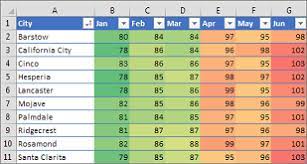
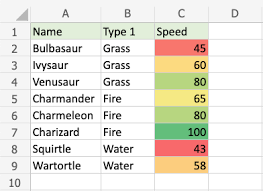
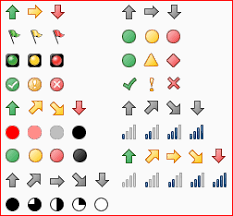
Here comes the Data Formatting options. Formatting Data makes it easier to read and present data. With Conditional formatting options, it is easier to highlight data based on any simple or complex condition or criteria. By highlighting data, you can make it easy to the winners and losers & spot issues and errors. Highlight the highest values, lowest values, values between a range, values outside a range, or set up your own rules, based on calculations.

LEVERAGE ON IN-BUILT EXCEL FUNCTIONS

Good knowledge of Advanced Excel Functions is essential to get more mileage out of Excel. Microsoft’s Excel functions are divided into multiple categories:

Categories of Microsoft Excel Functions

Lookup Functions like VLookup, Index, Match, Offset, Indirect allow you to find anything from within Excel tables and Master data. Pick the employees name based on Code, or find out who secured the highest or lowest sales numbers.

Statistical Functions like Median, Mode, Standard Deviation, Variance allow you to analyze data statistically. You can find out the median, standard deviation or variance, allowing you better insights into the data as to what happened, why it happened, and what is most likely going to happen.

Analysis Functions like Correlation & Regression, Trend Analysis & Forecasting further the statistical functions into forecasting, and allowing you to make better projections, and better decisions based on the happening trends.

Excel Formula Groups

Logical functions like IF, SUMIF, COUNTIF, IFERROR allow you do things conditionally – check if a condition is met, add or count based on conditions being met or not met, and even check and handle errors from happening.

Date & Time functions for finding todays date, time, difference between dates, hours, year, month, days, weekdays. This allows you to do time based calculations, buckets of date ranges, and even create ageing analysis based on range values.

Database functions that treat the entire data set as a database, and allow you to aggregate results using DSUM, DAVERAGE, DMAX, DSTDEV. This can be useful when working with big data

Text Functions to extract, clean and manipulate data – Left, Right, Mid, Char, Len, Fixed, Trim, TextJoin help in fixing erroneous data, and picking certain batch codes, lot numbers, region or product codes from within serial numbers.

Financial Functions like PV, NPV, PMT, IRR, Accrued Interest, Future Value, Mirr etc. are useful for analyzing the current, present and future value of things. Interest calculation, accruals, monthly installments, interest rates etc. can be easily worked out by using these advanced Financial functions of Excel.

PIVOT TABLES FOR QUICK ANAYSIS

Use the Pivot Table feature of Microsoft Excel, which is the fastest way to get some high level summary from your data set. Pivots allow you to slice and dice the data in numerous ways, and analyze it using different dimensions easily, without writing any formulas or macros. A pivot table is the first thing people turn to when they want some quick analysis or summary on the data.

With the help of Slicers, Timelines, Report Filter Pages, you can look at the same data in multiple ways, multiple dimensions, and in multiple filter flavors.

These are all great ways to analyze information quickly with Excel – a strong reason to learn Advanced Pivot Table techniques of Microsoft Excel.

Use Pivot Tables For Quicker Analysis of Data

In fact, knowledge of Pivot tables is often tested in interview questions for jobs requiring a good amount of business analytics. Even in days where most companies world class ERP software with hundreds of canned reports, often raw data is extracted from these ERP packages and combined with external market data, manual forecasts and then analyzed using Pivots.

Competence in Advanced Pivot Table analysis techniques are are must if you want to get into business analytics. Strangely, for the amazing things pivots can do, they are surprisingly easy to master. I often see managers and senior executives surprised at the simplicity, and lament that they missed out on this easy feature for the past several years, relying on junior executives to churn out the reports.

No harm in getting the ground staff to run the reports, but sometimes they do not have the acumen or sensory acuity of understanding the big picture. The juniors often report the obvious, without being able to get that helicopter view of the data.

Pivots are the easy, low hanging fruit that you should begin with, for it brings the biggest bang for the buck. You can easily master it in an afternoon, or in a pivot table masterclass and win an edge with this winning Advanced Excel trick up your sleeve.

CHARTS TO VISUALIZE INFORMATION

Excel Dashboards To Visualize Information Quickly

Create Charts from raw or summarized data to visualize the information quickly. Multiple columns and thousands of rows make it very difficult to see the big picture and spot a trend.

How To Convert Excel Data into Charts

A visual is worth a thousand words. An Excel chart can depict the past sales of many months or quarters, returned products or problem tickets created/solved each month, and it becomes much easier to spot a trend by looking at a high level chart more than by looking at a sea of rows and columns

There are multiple kinds of charts in Excel that can make boring data look stunning. Choose from Bar & Column charts, Pie & Donuts charts, Waterfall charts or Line Charts. You can also create combination charts showing column and lines at the same time, allowing you to measure 2 different metrics at one time.

Excel charts are easy to master, and there’s a lot to choose from. You can easily format them, add legend, titles, colors, and just about tweak every aspect with a mouse click. Mastering such Excel Charting tips can take you far in the boardroom, with better looking charts & visuals.

MACROS IN EXCEL TO RECORD & AUTOMATE STEPS

Macros are the one Advanced Excel Feature that allows you to extend Microsoft’s products and take them to newer heights. You can create your own functions & automations in Excel to perform multiple steps in a short time, at a single button click.

Macros are heavily used in Banks, financial institution, and in accounts departments of almost each and every company. They are the staple of the data enthusiasts who like to do things just once.

Excel VBA Macros allow you to load new data automatically each month, collate and tabulate multiple sheets & multiple workbooks, and create reports & charts automatically for each new period.

Macros are recorded or written and edited in a special language created by MicrosoftVisual Basic for Applications (VBA) in short.

While learning VBA may take some time, this is the secret weapon that separates the wizards of Excel from the amateurs. Once an Excel macro is written and tested, it can easily be deployed to the masses. Your colleagues and users needn’t know the complexities or the logic of how things are done.

Macros Automate Routines & Execute Faster

For example, you could create your own custom Financial Accounting Software, just by using Excel. Using Forms, you can get the users to key in the sales, expenses, and generate invoices or receipts at a click. And a Cash Flow Statement, a Profit & Loss Statement, or a Balance Sheet could be generated at any time, collating all the data keyed in so far.

This allows the users to get more done with Excel, and everyone doesn’t have to learn the technicalities of generating such reports at any time.

VBA Macro writing and editing skills are considered Advanced, because it requires you to learn the specific way Excel refers objects like workbooks, sheets, rows and columns. VBA is a full blown programming language – allowing you to write loops, conditions, procedures, functions, and tag them to buttons, mouse movements etc.

This one advanced Excel skills can make you indispensable in the whole department. I have known several people who have a clout in the company because of their deep knowledge of the system, and that they have written the backend systems that the company uses in its day to day operations. Such deep knowledge is always in demand.

SHARING & PROTECTION OF DATA

Today Microsoft Excel is improved and enhanced to allow multiple colleagues and friends to work together on the same file. You can track changes of who did what, and you can even protect the information in such a way that only those authorized to see or edit can do so, protecting information from prying eyes.

Sharing & Protection Options in Excel

With Advanced Data Protection techniques in Microsoft Excel, you can hide sheets, write protect them to make them view only, or allow only certain rows, columns or cells to be editable. This gives a tremendous advantage while working with multiple people and multiple sheets.

With the integration of OneDrive, you can truly collaborate with your team, having multiple edits and track changes as they happen. It is much easier to edit, pick the changes you like, or remove/revoke changes that you do not approve of.

Share & Protect Data Accurately With Amazing options

If you haven’t visited the Review menu of Excel, you’d be surprised with the multiple options available under the hood, that allow for Collaboration, Sharing, Editing & Protection of Documents.

SIMPLE, COMPLEX, ADVANCED TEMPLATES

Almost everything you do in Excel has been done before. So if you are making a calendar, or a cash flow report, a monthly report, attendance report, Result of Students, Invoices or Statement of accounts, Expense claims or Employee Leave forms for the team, there is a ready made template to do so.

Not just one, you have hundreds of templates to choose from. These ready made templates are available to any Microsoft Office user to use and save time.

Save Time With Sophisticated Excel Templates

On top of this, you can create your own company wide or departmental templates, that can be used month after month, quarter after quarter without any changes. Consolidation becomes a breeze if you all use the same template.

Plus, tracking & merging of multiple changes can be done with the hidden Track & Merge option. You can’t find this button in the standard toolbar, and need to enable it separately. A golden gem of a function. Even seasoned pros have been unaware of this super cool advanced excel functionality.

Print Beautiful Reports & Charts With Advanced Excel Techniques of Page Setup

With Advanced Page setup, you can decide what you want printed and what not. You can add headers, footers, page numbers, logos etc. straight out of the box. But Excel goes beyond this into giving you fine control over the rows, columns, and area that will be printed.

Excel Page Setup Options

You can control whether you want to print grid lines, draft copy or are you printing the final copy. The current date or time can be printed too, along with a lot of meta data – file names, sheet names, page numbers etc. provide you with a fine control. Printing order – collated or by page, and auto fit to handle orphan printing of some columns can be a real paper saver.

Trees will love you for learning and using the page setup options within Excel well.

ADVANCED SORTING & FILTERING

Almost everyone figures out how to sort data on any column – in either ascending or descending order. But Excel allows you to perform custom formatting – based on your values, and your defined order.
Sorting for multiple, unlimited levels is a boon too. This breaks the limited 3 level sorting of previous versions, allowing you to sort as many levels as you please.

Filters have improved much in the past 10 years. Now you can easily filter the Top 10 or Bottom 10 values, filter by color, filter by values, and even filter by specific text or dates. There filter feature helps you to actually define the period of data or values that you want to focus on, and eliminate the rest. Master this simple feature, and get to your important data points quickly.

Filtering the values to focus on at any given time removes clutter and makes it easy to visualize information in Excel.

FORMATTING DATA INTO TABLES – A SUPER SIMPLE WAY TO ADD MAMMOTH FUNCTIONALITY, For Free!

Microsoft added the functionality to treat data as a table in Excel 2007. But the name they gave to the button that begins this functionality is a showstopper.

Format as Table in Excel

When you look at “Format As Table”, all you’ll see is multiple coloured data tables. And many an Excel enthusiasts pull away, thinking its just colors… They fail to learn the mammoth hidden functionality of Excel beneath this mis-labeled button.

But once you go over this hump, you are on your way to explore gold with Formatted Tables.

Since 2007, Excel Tables have come a long way. Now they have smart range names, auto fill and auto spill ranges, and use range names in calculations. There are several magic cells in Excel Tables, that can perform additional tasks too.

Becoming adept at using Table features of Excel will speed up your analysis.

Further, tables can be filtered, sorted, sliced. For date based data, you can add a Timeline, which is a slicer based of dates, but much better.

There you have it… These are just some of the advanced features of Excel. Learning about additional things like Custom Formatting, Range Naming, Working With multiple Worksheets, or combining data from multiple workbooks, consolidation, What-if analysis, Scenario Manager, Data Tables, Data Validation etc. will take your Advanced Excel knowledge to a much higher level. There is simply too much functionality to talk about in one article.

Suffice is to say that if you want to get done more, cheaper & faster, then learn some of these Advanced Excel Features, pronto!

How long does it take to learn excel?

There is no simple answer when you are beginning to learn a new skills. To learn Advanced Excel tricks is going to be the same too. It also depends on your interest, commitment, and the amount of time you are wiling to spend in learning it.

I would say that learning Advanced Excel tips and tricks is more of a journey.

You learn some concept, begin to apply it, and then learn some more. While learning, you will come across new concepts, see new problems, and seek newer ways to handle these challenges. This step by step approach will open your eyes, develop a keener sense of Excel capability, and develop your Excel muscle step by step, day by day!

I have been a student of Microsoft Excel for the past 30 years. And still I find new things, and new ways of doing the same things. It has been a fun and exciting journey and I love challenges in Excel.

Every once in a while, someone will send me a long and complex looking formula, and dissecting it, understanding it, and learning from it makes us all better. Helping others with their Excel has been one good way that has helped me grow my Excel competence.

Can you teach yourself Excel?

Yes, of course you can teach yourself Excel. And you can even learn Excel at home. All the same, I would recommend a step by step approach in self-learning of Advanced Excel . Based on your interest, it is safe to divide Excel Training into a few sections.

First begin with understanding Range Names, Conditional Formatting, Tables and Pivot Tables.

Then pick up more complex Logical & Lookup Functions to delve deeper.

After this, you can then focus on Financial or Statistical or Date Functions based on interest or usage within your organization.

No point in learning Excel for the sake of learning. You must apply it first. So find a challenging situation within your company or department, and seek to build a solution to fix it is a good way to get started in building your Excel muscles.

It is safe to say that if you begin learning Excel techniques by using this method, in 2-3 months you will see a big improvement in your understanding of Excel.

And in 6 months time you can be at a pretty advanced level in your Excel usage and your added competence will give you more confidence within your organization.

How Can I Learn Advanced Excel Faster?

If you find this route of self-learning difficult or too long, it may be better to develop and learn advanced excel skills in a more systematic and methodical manner.

I would recommend going for a formal training on Microsoft Excel. Based on your level, and interest, you can choose an Advanced Excel Training in your city or suburb. This is the best way to learn advanced Excel.

Most Advanced Excel courses are 2-3 days long, depending on their coverage.

Make sure you join a workshop where lots of exercises and hands-on is provided, and not just a demo of Excel functionality.

It’s because we all learn better by doing it ourselves, rather than just watching someone else do it.

Plus, doing the exercises yourself will expose you to the common pitfalls and mistakes, which can then be rectified with the trainer/facilitator, and with worked examples and samples, you will gain a better understanding of the topics.

Since 2003, Intellisoft Systems has been providing short courses on Excel at all levels:-

We also have Excel training for creating management charts and reports – called the Excel Dashboard MasterClass. For those looking to automate Excel, you may choose to enroll in the 3 Day Practical, hands-on, VBA Macro Programming workshop.

What is Advanced Excel Training?

A short Excel training of 2-3 days will cover the key concepts. In such a formal Excel training program, the notes, handouts, exercises & sample examples are readily available for you to begin using immediately.

I personally find learning anything in a short course to be more beneficial. It covers the concepts quickly, and then I can focus on the details based on my interest areas.

Plus the best thing for a formal training is that we have a trainer or facilitator available to ask questions along the way.

Learning in a sheltered environment is better as newbies often stop when they stumble upon initial concepts and often give up completely.

What are the Topics in Advanced Excel Training?

Make sure your chosen Excel training at least covers the most important topics, at the very least. Our 3 day Advanced Excel course in Singapore covers all these, and much more, with practical examples and exercises.

  • Absolute & Relative Referencing
  • Using Range Names
  • Advanced Formulas & Functions
  • Advanced Charting Techniques
  • Using Tables
  • Using Pivot Tables & Pivot Charts
  • Sharing & Protection of Data/sheets
  • Consolidating Data From Multiple Sheets/Books
  • Recording and Running Simple Macros

This much can be covered in a 2 full day training if you can attend such a short course. And it can be an eye opener to the rich functionality of Excel.

What is the Best Excel Training Course?

If you are looking for the Best Excel training, look at some key things to consider, like time, speed, convenience & availability. If you can attend classroom training, I’d absolutely recommend it.

But if you are not able to find one in your town, you can opt for online training for Analyzing Business Data by Mastering Pivot Tables to get started first. There are plenty of Online Trainings for Microsoft Excel available. You can also checkout YouTube videos on Excel.

At Intellisoft, we provide both Classroom and e-learning via Zoom classes for Advanced Excel. You can choose from several dates available. These are extremely popular, and we have over 20+ years of running Excel classes.

All of our trainers come with years of industry experience. They have a passion for training and sharing their tips and tricks of Excel with you. You’d absolutely love our best advanced excel training course.

How Do I Get Excel Certified?

Most Advanced Excel courses will come with a certificate of Attendance. This is sufficient for most people, for real competence in Excel is more important that a certificate. Intellisoft offers such certificate of attendance for all of its 2 day Excel courses & workshops in Singapore.

To boost your resume & build your LinkedIn profile, a well recognized  official certification in Excel is required!

There are 2 major certifications you can choose from

Microsoft Certified Professional (MCP) in several Microsoft technologies. For Excel, you can go for the Microsoft Office Specialist (MOS) certification. There are 2 levels – Associate and an Expert level. Better to go for the MOS Excel Associate level first, which is an easier Excel Exam. Then opt for the Expert MOS certificate in Excel. Beware that Microsoft certifications are pretty expensive.

Another option is to go for the extremely popular certification from the International Computer Driving License (ICDL Foundation). In Asia, this certificate is available at the Foundation and Advanced levels.

At Intellisoft Training, we are the official partners with Microsoft, and ICDL Asia, and are authorized to administer both the certifications in Excel. You can choose the Microsoft one, or the ICDL one, based on your preference.

The ICDL Certification is widely recognized by the Singapore government ministries. It is a tad cheaper in terms of the exam assessment fee too.

Plus, the Singapore government subsidizes the Advanced Excel Training Fee & Certification fee, allowing permanent residents and Singapore citizens to get certified in Advanced Excel skills. It is considered an Essential skill for office use, and is considered a must have for all office executives, analysts & managers. Do contact us for more information on this.

Next Steps: For Enhancing Your Spreadsheet Skills With Advanced Excel Training

With so much demand for Advanced Excel skills, so rich & useful functionality in Excel, and an easy path to victory with Excel, what are you waiting for. Grab the next chance to explore Excel in greater depths. Enroll in a classroom training, an e-learning training, or attend a Zoom class. Whatever it takes, just get started, right away.

Excel is the secret Swiss Army knife in your data analysis toolbox.

Just imagine, how far you can go with a proper, formal Advanced Excel Training! The opportunities are limitless, and so is your future!

Cheers,
Vinai Prakash
Founder & Master Trainer at Intellisoft Systems, Singapore

Learn Excel Lookup Functions Easily

Learn Lookup Functions in Excel at Intellisoft Singapore

Some of the most popular Excel Lookup reference functions are VLOOKUP & HLOOKUP.

A newly added XLOOKUP is becoming very popular too. (XLOOKUP is currently only available in Office 365 versions). At Intellisoft, you can learn it by joining the XLOOKUP Training course in Singapore using Microsoft Office 365.

Learn Lookup Functions in Excel at Intellisoft Singapore

For the power users of Excel, the mastery of INDEX, MATCH & OFFSET can be considered vital, as these are considered the advanced lookup functions in Excel.

These functions will help you Analyze Data quickly. You should enroll in the data analysis and interpretation training class in Singapore.

But with the introduction of XLOOKUP, some of the jugglery created by mixing INDEX & MATCH combination is no longer required.

VLOOKUP Function of Excel

The most MUST HAVE Function ever. Even Excel gurus can’t live without it. I polled a group of Excel experts recently, asking if Excel’s VLOOKUP was overrated. I got a severe backlash for even mentioning it.

Almost everyone said that it is their GO TO function, an absolute must-have and that Excel won’t be that useable if this VLOOKUP function was taken away from Excel!

Most people swear by their VLOOKUP functions. It is their GO TO function when they want to lookup value of any type.

According to legend, VLOOKUP mastery is what separates the Pro Excel users from the Amateurs!

Vlookup is akin to using a dictionary. You know the word, and you want to find out the meaning. This dictionary is the range of cells that contain the lookup up value, and its associated value. The V in VLOOKUP stands for the dictionary being a vertical dictionary. So for a vertical lookup, you must use VLOOKUP function only.

=VLOOKUP(word, dictionary, column number of meaning, exact_match_ype)

The first column in the dictionary must contain the lookup up value, and the first row should be of the data. You should not include the headings in the dictionary table. The difficulty most people have with VLOOKUP is the last flag – the logical value of TRUE or FALSE (You can use 1 for True and 0 to indicate the False flag).

Once a matching value is found out, you will be able to get the return value based on the search. The error value of N/A will be generated if there is no exact match until the last row.

The mystery is created because to use VLOOKUP for an exact match, you have to specify the last optional flag, and set its value to a FALSE or a 0. By default, it is set to 1, which is useful for an approximate match type only. So for an exact match of a specific value, the last parameter is not really optional… it is mandatory.

VLOOKUP EXAMPLE:

There are a couple of major shortcomings in using VLookup function of Excel. First of all, the VLOOKUP is really a slow function. It is apparent when you do a lookup on a large list of 100,000 values or more. Secondly, VLOOKUP can only look up up a corresponding value from the columns on the right of the looked-up value. It can’t look to the left!

Make sure you master this Excel function really well.

HLOOKUP Function in Excel

An oft-forgotten cousin of VLOOKUP, this Horizontal Lookup and Reference function in Excel works in a similar way too. The only difference is that in this case, a lookup dictionary is a horizontal dictionary of columns, denoted by the H.

HLOOKUP is most used in range lookups, rather than exact matches, as columns are not the best suited for exact values, because of their limit of 16,000. Where a list can grow vertically to over a million records easily.

In the following formula, this lookup function searches for the closest match, especially when we are not searching for an exact match, but an approximate match. The dictionary is the table array and it is recommended that we use the absolute reference to lock the cells from moving.

=HLOOKUP(A5, $G$2:$K$100, 2)

Here the HLOOKUP will search for the exact or the next smallest value in the lookup table absolute range of $G$2 to $K$100, and return the second row. If you want the third row, you can change the 2 into a 3.

Both VLOOKUP & HLOOKUP return values from a single row or a single column.

Using the XLOOKUP Function in Excel

Did you know that new functions are added to Excel till today, and these are extremely useful functions making approximate matches as well as exact matches.

Finally, after years of backlash at Microsoft for creating the mess with the Match Type (True and False) in VLOOKUP, they got rid of it completely in the Excel XLOOKUP function.

And by default, XLOOKUP is set to do an exact match.

XLOOKUP requires a deeper understanding of the various scenarios. I’d recommend attending our formal ADvanced Excel Training to build a strong foundation in Excel. You can call us at 6250-3575 for more information of our courses and available enrollment dates for classroom training in Singapore.

This new XLOOKUP function of Excel is only available from Microsoft Office 365 users. It does not work on Excel 2016 or Excel 2019 versions.

Using INDEX Function in Excel

If you know the row number, you can find the value on that row or column cell directly.

INDEX can be used as an Array function also. Paired with MATCH, you can find any value on any row or column in a 2-dimensional array.

Index can help you to find the value on the row or the column of the specified number

How To Use Excel MATCH Function

When you want to find an exact match in an array and return the row number in the array, MATCH comes to your rescue. It is one up on VLOOKUP, which requires you to know the column you want to return. MATCH can find a match for a value that is lower, exactly equal or higher than the specified value.

Paired with INDEX, an INDEX & MATCH Function can manage to look up on the left or the right of any array of cells.

Master the OFFSET Function within Excel

To navigate your way in a two-dimensional array of rows and columns, you can use the OFFSET function in Excel. It can traverse any number of Rows or Columns, and get you the value.

How to use the offset function in Excel:

=OFFSET(Starting Cell, Row to move up or down, Columns to move left or right, Number of rows required to be returned, number of columns required to be returned)

I generally use OFFSET more than INDEX and MATCH combinations. Using one super-powerful OFFSET function is more straightforward.

Once you start using Offset in Excel, you wouldn’t want to use other lookup functions of Excel.

When Do I Use the INDIRECT Function of Excel?

The Excel INDIRECT function returns the reference specified by a text string. References are immediately evaluated to display their contents.

Use the INDIRECT function when you want to change the reference to a cell within a formula, without changing the formula itself.

=INDIRECT(A3)

The above Indirect function will check what is in cell A3. And A3 will have the cell reference to another cell. So if A3 contains B35, Excel will then read the value in cell B35.

Thus, we can get the value of the reference in cell A3. The reference is to cell B3, which may contain the value 45.

The INDIRECT can be very useful in creating custom management dashboards and reports.

What does the FORMULATEXT Function of Excel Do?

Displays the text of another formula. This helps to see all formulas next to their values and can be useful to spot mistakes and issues with formulas.

=FORMULATEXT(A3) will provide you with the formula in cell A3 as a Text Value.

This FormulaText function is useful to see the formula without having to go into Editing mode.

View this link for more information on how to get the Formula of another cell in Excel.

How to use ROWS Function of Excel

Displays the row number of a reference cell.

=ROWS(A1:B4)

Will return a 4. This is because there are 4 Rows in the given range.

How to Use the COLS Function in Microsoft Excel?

Displays the column number of a reference cell.

=COLS(A1:B4)

Will return a 2. This is because there are 2 Columns in the given range: A & B

Using the TRANSPOSE Function of Excel like a Pro

Converts rows into columns and columns into rows. Just like the Transpose feature in Paste Special, but done programmatically.

So if you use TRANSPOSE(A1:D3), you have selected 4 columns and 3 rows.

After the Transpose is completed, you will get an array reference of 3 Columns, and 4 Rows. The horizontal table would have flipped and will be visible vertically.

Pretty nice use of hanging values in rows into columns.

When Do I Use the UNIQUE Function of Excel?

The UNIQUE function of Excel generates a list of unique values that automatically spill down. An array function can be used to create data validation lists too. Available from Microsoft Office 365 onwards. This UNIQUE function is not available in Excel 2016 or Excel 2019.

Learning the Lookup Functions in Excel Quickly & Easily

As you can see, there are a lot of LOOKUP functions in Excel, and learning and mastering them takes time. But once you do master them, you can do wonders with your Excel skills.

It is worth the effort to learn the Excel Lookup Functions. Call Intellisoft at 6250-3575 or What’s App at +65 9066 9991 for Excel 365 Training that covers the key Lookup functions of Excel.

You will definitely enjoy it!

Cheers,

Vinai

Founder & Master Trainer at Intellisoft Systems in Singapore.
WSQ Excel Courses SkillsFuture Eligible in Singapore

How To Clean Data Using Power Query

Power Query To Clean Data in Power BI and Excel

Data cleaning is one of the most critical steps in any data analysis process. Without clean, structured, and reliable data, insights drawn from analysis can be inaccurate or misleading.

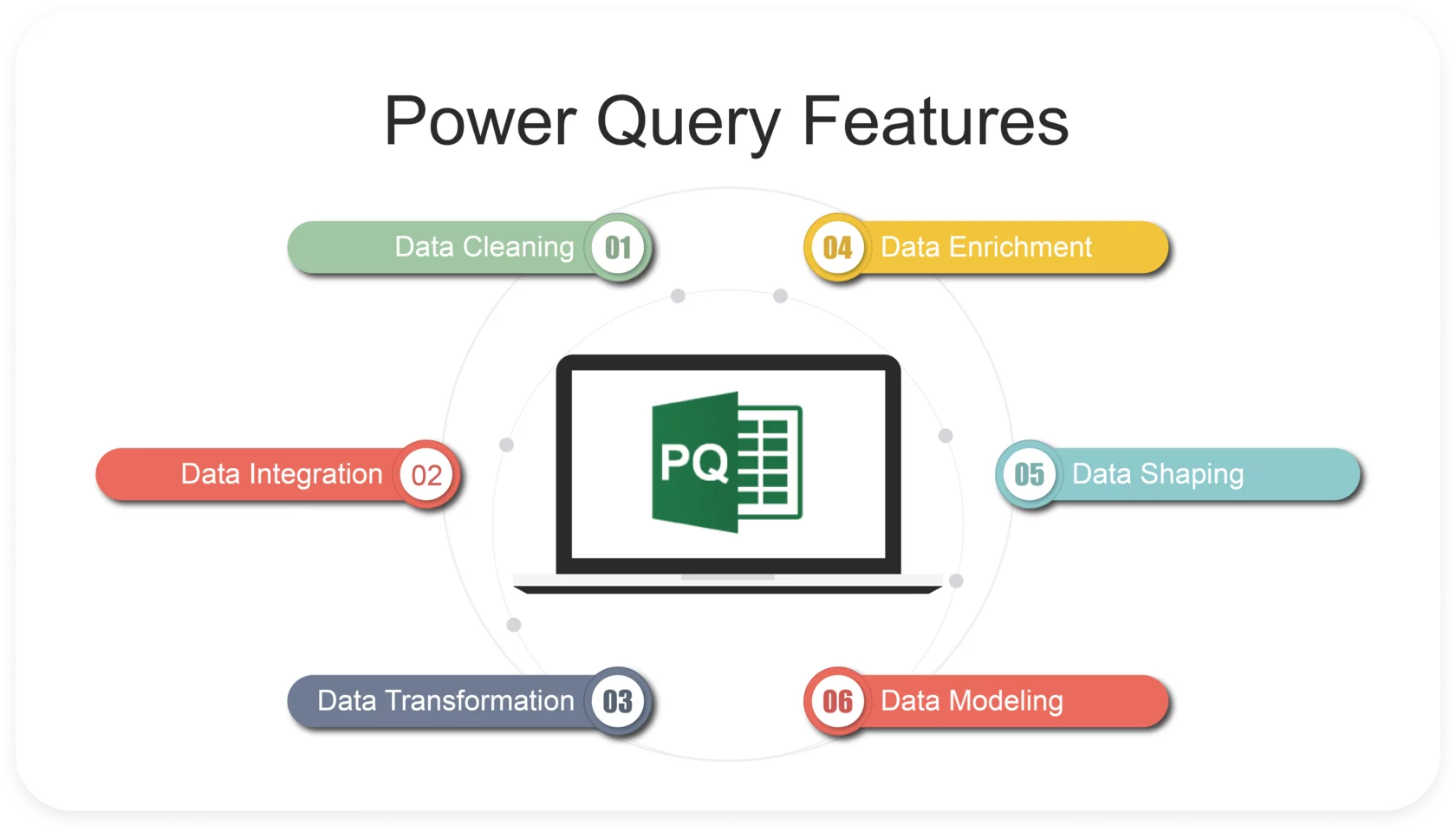
In Power BI, Power Query serves as a powerful tool that allows users to connect, transform, and clean data efficiently, ensuring that it’s ready for reporting and analysis.

Whether you’re working with messy datasets from multiple sources, dealing with missing values, or eliminating duplicates, Power Query provides a simple, yet robust interface to clean data with minimal coding.Power Query To Clean Data in Power BI and Excel

In this guide, we’ll walk through a 10-step process to clean data using Power Query, providing clear and actionable instructions to ensure your data is refined and ready for analysis.

10-Step Process to Clean Data Using Power Query in Power BI

  1. Load Data into Power Query
  2. Remove Unnecessary Columns
  3. Rename Columns
  4. Filter Out Unwanted Rows
  5. Handle Missing Values
  6. Change Data Types
  7. Remove Duplicates
  8. Trim and Clean Data
  9. Split and Merge Columns
  10. Apply and Load Data to Power BI

Step-by-Step Process & Details on How to Use Power Query in Excel / Power BI

1. Load Data into Power Query

The first step is importing your data into Power Query. This could be from an Excel file, SQL database, or other data sources.

  • How to do it: In Power BI, click on Home > Get Data. Choose your data source and load the data into Power BI. Then click Transform Data to open Power Query Editor.
  • Purpose: This step allows you to connect Power BI to your data source, bringing raw data into the environment for cleaning and transformation.

2. Remove Unnecessary Columns

Not all columns in your dataset are needed for analysis. Removing irrelevant columns helps streamline the dataset and improve performance.

  • How to do it: Select the columns you don’t need, right-click, and choose Remove Columns.
  • Purpose: This reduces the size of your dataset, making it easier to work with and removing noise that could affect analysis.

3. Rename Columns

Renaming columns improves readability and makes your dataset more understandable, especially when working with multiple datasets or sharing reports with others.

  • How to do it: Right-click the column header and choose Rename. Alternatively, double-click the column name to rename it.
  • Purpose: Clean, descriptive column names make it easier to recognize and use data fields in future transformations and analysis.

4. Filter Out Unwanted Rows

Filtering data ensures that only the relevant rows are kept for analysis. This is particularly useful when you have data entries like errors or outliers that can skew your results.

  • How to do it: Click the dropdown arrow in the column header and apply filters based on conditions (e.g., removing rows with zero values, errors, or irrelevant categories).
  • Purpose: Filtering reduces dataset size and removes irrelevant data, focusing on what’s important for your analysis.

5. Handle Missing Values

Data often has missing values, which can create issues in analysis. You can either remove rows with missing data or fill in values where appropriate.Use Power Query to Clean Data in Power BI. Join Hands on Training at Intellisoft Singapore

  • How to do it: Right-click the column and select Replace Values to fill missing data, or use Remove Rows > Remove Blank Rows to eliminate incomplete records.
  • Purpose: This ensures your dataset is complete or that missing data is handled in a way that doesn’t negatively impact your analysis.

6. Change Data Types

Correctly assigning data types (e.g., text, number, date) is crucial to ensure that Power BI interprets your data correctly.

  • How to do it: Select the column, then go to the ribbon, click on the Data Type dropdown, and choose the appropriate type (e.g., Decimal Number, Date, Text).
  • Purpose: This avoids issues like date misinterpretation or incorrect calculations due to mismatched data types, ensuring smooth analysis.

7. Remove Duplicates

Duplicated data entries can skew your analysis by inflating totals or introducing inaccuracies. It’s important to identify and remove any duplicates.

  • How to do it: Right-click the column where duplicates might exist, then select Remove Duplicates.
  • Purpose: Removing duplicates ensures that each data entry is unique, resulting in accurate and reliable reports.

8. Trim and Clean Data

Text data often comes with leading or trailing spaces or non-printable characters. Cleaning this data ensures consistency.

  • How to do it: Use Transform > Format > Trim to remove unnecessary spaces, and Clean to remove non-printable characters.
  • Purpose: Trimming and cleaning text data ensures consistency and prevents potential errors when joining datasets or conducting analyses based on string matching.

9. Split and Merge Columns

Sometimes, data is combined into one column and needs to be split (e.g., first and last names, date and time). Conversely, you may want to merge multiple columns into one (e.g., creating a full address from separate fields).

  • How to do it:
    • For splitting: Select the column, go to Transform > Split Column by delimiter (e.g., space, comma).
    • For merging: Select multiple columns, right-click, and choose Merge Columns.
  • Purpose: Splitting and merging columns helps you organize your dataset in a way that aligns with your analytical goals.

10. Apply and Load Data to Power BI

After completing the data cleaning, the final step is to apply your transformations and load the data back into Power BI.

  • How to do it: Click Home > Close & Load. This will apply all transformations and load the clean data into Power BI for analysis.
  • Purpose: This finalizes the cleaning process and makes your data ready for visualization, reporting, or further analysis in Power BI.

Conclusion

Cleaning data with Power Query is a vital part of any data analysis process in Power BI. These 10 steps will help ensure that your data is clean, reliable, and ready for actionable insights. By following this structured approach, you’ll minimize errors, streamline analysis, and set the foundation for building accurate and meaningful reports.


Top 5 Automations With Excel VBA Macros

Amazing Ways to Combine Data from Multiple Workbooks with VBA in Excel course at Intellisoft Systems

Are you looking to streamline your daily tasks and enhance your productivity?

VBA (Visual Basic for Applications) is a powerful tool that can help automate repetitive tasks in Microsoft Office applications, saving you time and reducing errors.

Top 5 most common VBA automations, with detailed use cases and why VBA is the perfect tool for each scenario:


1. Automated Report Generation

Make Automatic Invoice in Excel With VBA Course

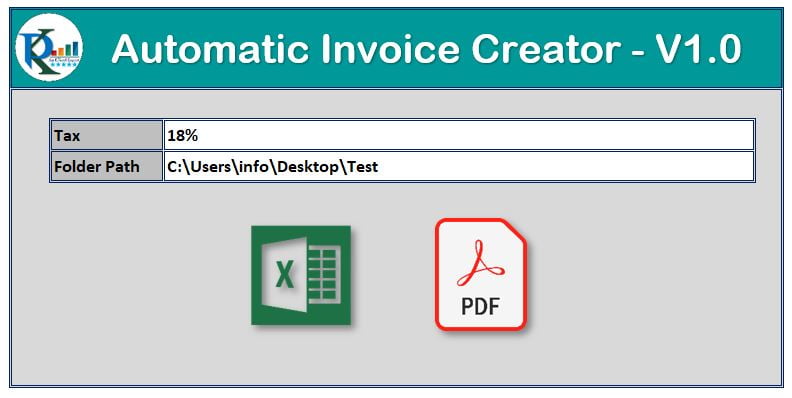
Use Case: Regularly generating complex reports in Excel can be time-consuming and prone to manual errors. With VBA, you can automate the entire process—from data collection and analysis to formatting and presentation—ensuring consistency and accuracy.

Why VBA: VBA allows you to automate repetitive tasks, such as pulling data from multiple sources, applying filters, creating pivot tables, and formatting reports. It can handle large datasets with ease and is fully customizable to meet specific business needs.


2. Report Consolidation and Summary Creation

Combine multiple data files into a single master file with Excel VBA at Intellisoft Singapore

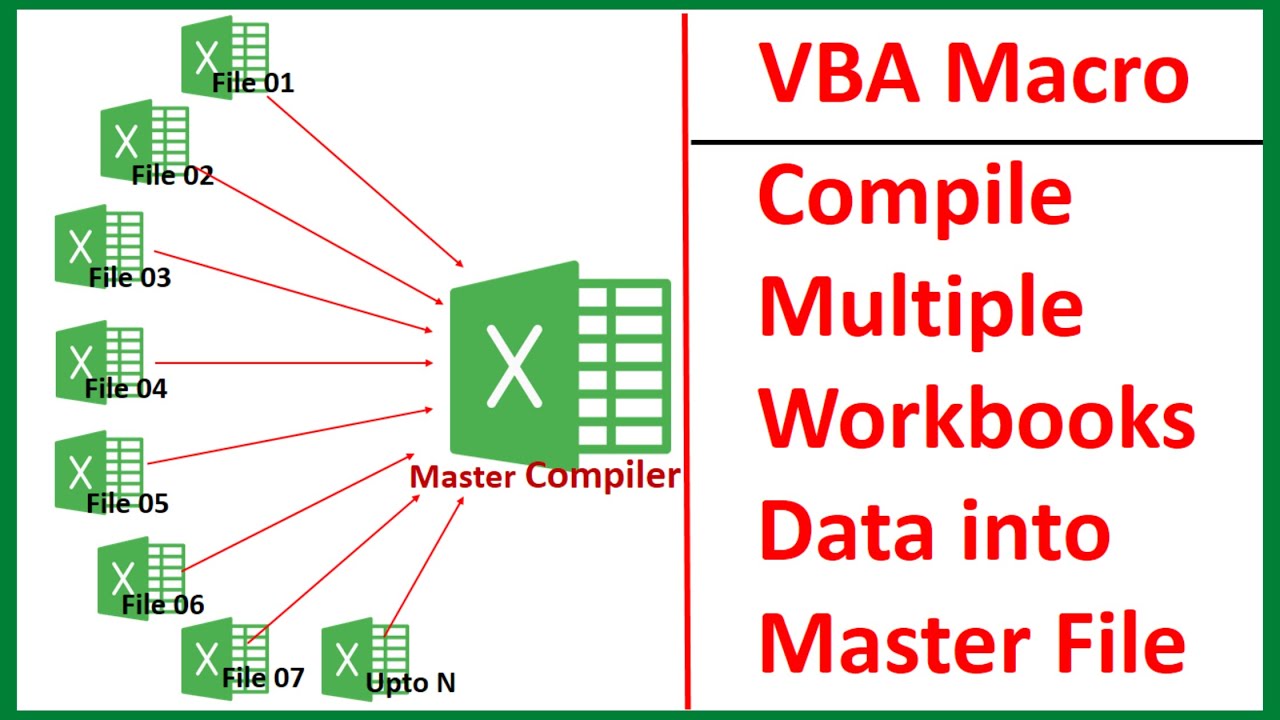
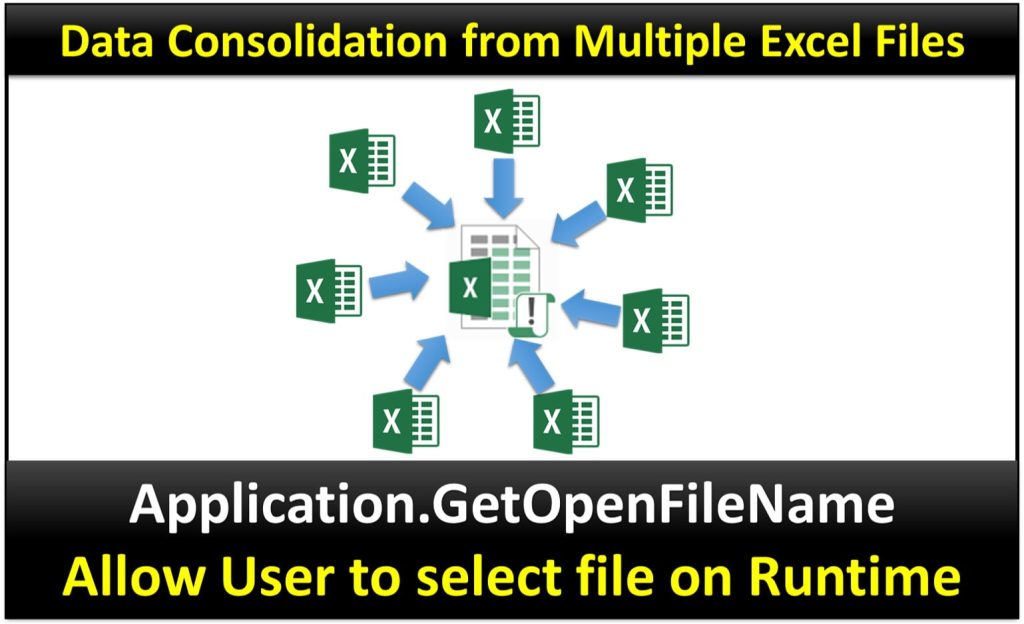
Use Case: Imagine having multiple regional or monthly data sheets within the same workbook. Manually consolidating this data into a single summary sheet can be tedious and error-prone. VBA can automate this process by compiling data from each sheet into a consolidated summary, ensuring accuracy and efficiency.

Why VBA: VBA can loop through each sheet, extract the necessary data, and compile it into a master summary sheet. It can also work in reverse—separating data from a summary sheet into individual monthly or regional sheets. This bidirectional capability makes VBA an essential tool for handling complex data consolidation tasks.

We teach how to combine data from multiple files into a single Excel workbook in our VBA Macro programming workshops in Singapore.


3. Data Cleaning and TransformationData Cleanup and transformation with Excel VBA Macro Programming. Learn Step by Step at Intellisoft in Singapore

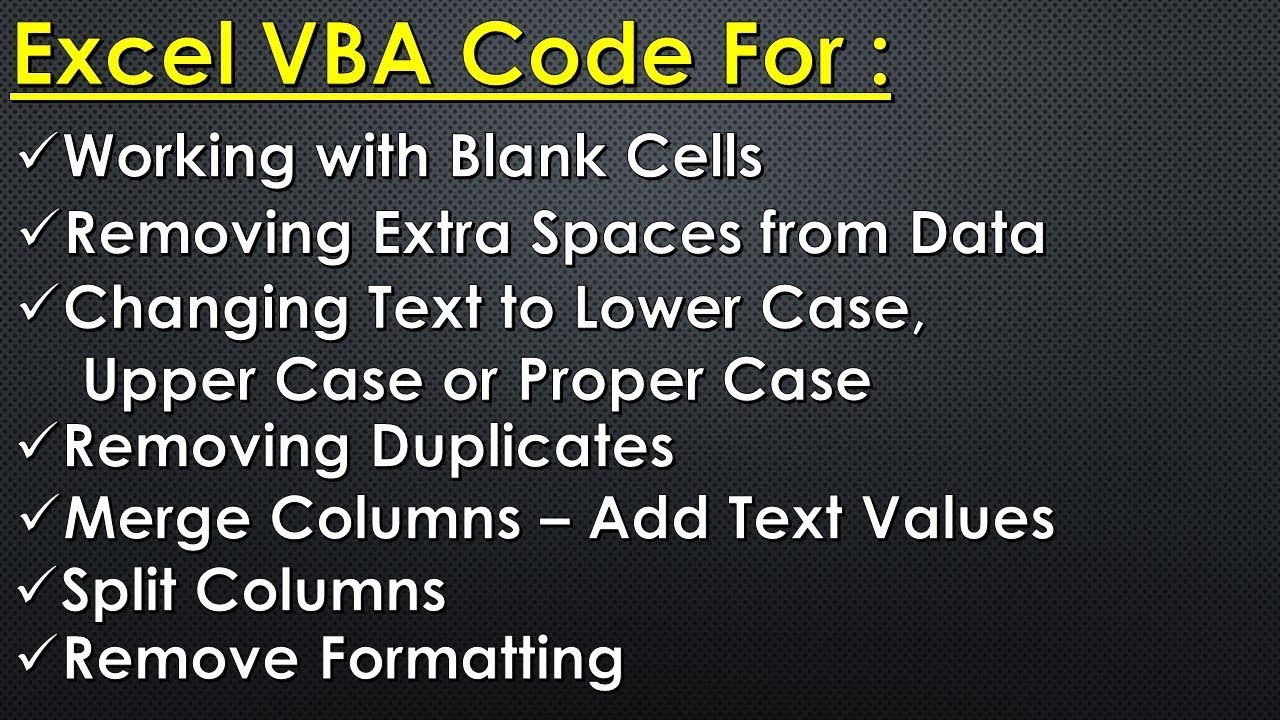
Use Case: Cleaning and preparing data for analysis is often a tedious task, especially when dealing with large datasets. VBA can automate the process of removing duplicates, correcting data inconsistencies, and transforming data into a usable format.

Why VBA: VBA offers powerful string manipulation functions and loops, making it easy to automate complex data cleaning tasks. It can interact with multiple worksheets and workbooks, ensuring that your data is accurate and ready for analysis.


4. Email Automation in Outlook

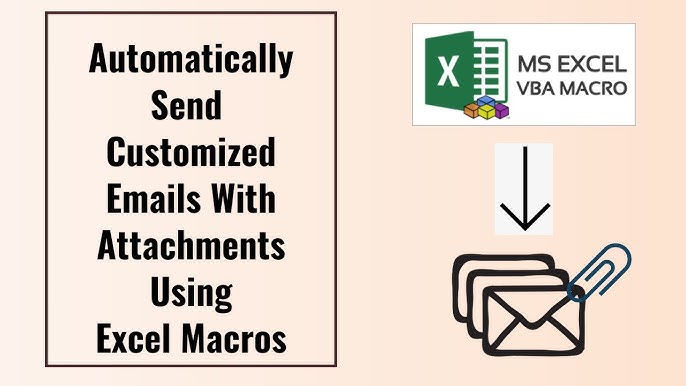
Automatically send custom emails from Excel with VBA

Use Case: Sending out mass emails or personalized notifications manually can be labor-intensive. VBA can automate email generation and sending directly from Outlook, including personalized content based on data from Excel.

Why VBA: VBA seamlessly integrates with Outlook, allowing you to automate email processes such as sending bulk emails, scheduling sends, and attaching files dynamically. It ensures timely and consistent communication without manual intervention.


5. Task Automation in Word

Generate a Word Invoice in Excel with VBA coding.

Use Case: If your work involves creating standardized documents such as contracts, invoices, or letters, VBA can automate document generation, reducing the time spent on repetitive formatting and data entry.

Why VBA: With VBA, you can create templates that automatically populate fields with data from Excel or other sources. This ensures that your documents are uniform, accurate, and generated quickly, minimizing manual errors.


Why Choose VBA?VBA Course in Singapore at Intellisoft with WSQ SkillsFuture SFEC UTAP Grants

VBA is an ideal choice for automation because it is:

  • Integrated: Works seamlessly with Microsoft Office applications, ensuring compatibility and ease of use.
  • Customizable: Can be tailored to meet specific business needs, regardless of complexity.
  • Efficient: Automates repetitive tasks, freeing up time for more strategic work.
  • Accessible: Requires no additional software, as it is built into Microsoft Office.

Learn to Automate with VBA – Join Our VBA Macro Programming Class!

We cover all these automation techniques and more in our VBA Macro Programming class. This hands-on course is designed to teach you how to harness the power of VBA to streamline your workflow. The course is WSQ funded, and companies can tap into SFEC grants. Individuals can also use SkillsFuture Credits and UTAP grants.

Register Now or Request a Brochure to learn more!

Unlock the full potential of Microsoft Office with VBA and take your productivity to the next level.


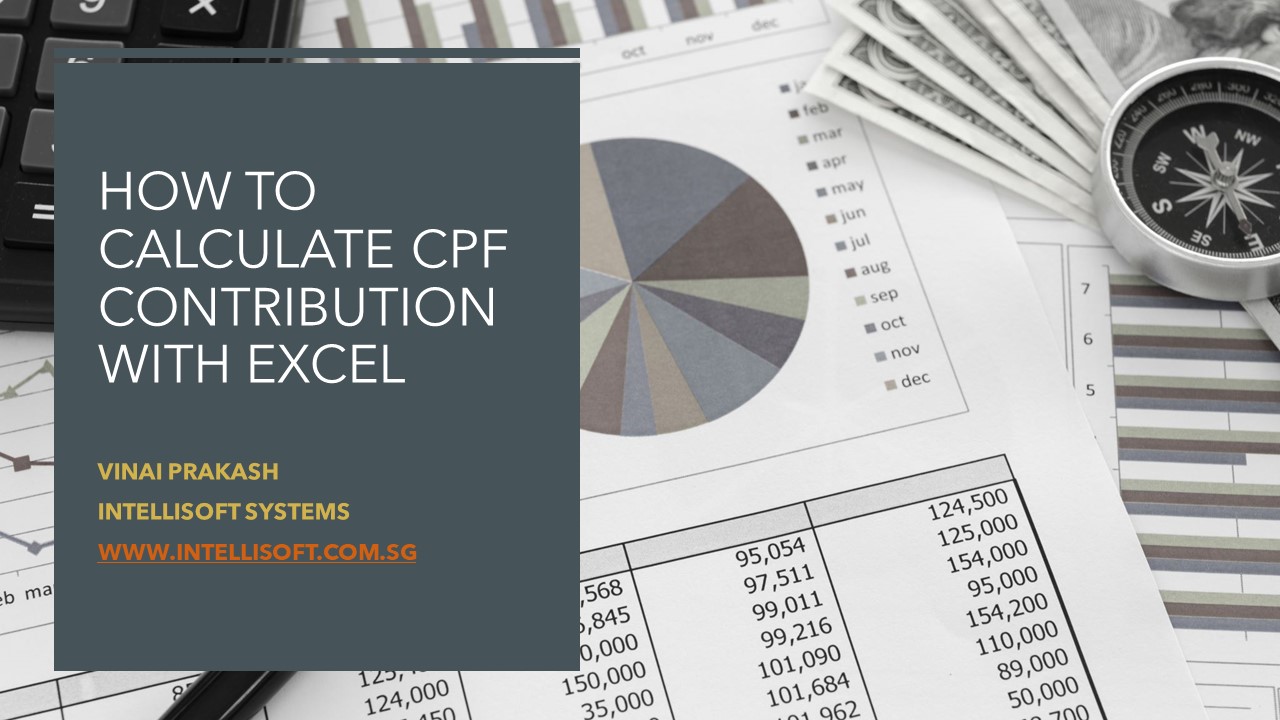
How To Calculate CPF Contribution With Excel [2024 Update]

How To Calculate CPF Contribution Using Microsoft Excel - Free Template in Excel

UPDATED FOR CPF CONTRIBUTION RATE CHANGES FROM THE YEAR 2024

How To Calculate CPF Contribution Using Microsoft Excel - Free Template in Excel
How To Calculate CPF Contribution Using Microsoft Excel – Free Template in Excel

Learn how to Calculate CPF contribution for Employees and Employers in Singapore by using Microsoft Excel. This covers Singapore Citizens and Singapore Permanent Residents SPRs.

If you want to join our Excel course in Singapore & improve your skills, we have multiple courses – Basic Excel for Analytics, Advanced Excel Courses in Singapore & VBA Macro Programming Courses.

Singapore CPF Rules
In Singapore, all salaried employees need to contribute 5-20% of their salary, depending on age to their Central Provident Fund or CPF. The employer contributes 7.5% to 17% of the salary to the CPF Fund, depending on the age of the worker.

The CPF contribution calculator for employers and employees can be done using Microsoft Excel.

CPF contribution calculator Excel File is available for download below.

Employee’s age
(years)
CPF Contribution Rates changes from 1 Jan 2022
(monthly wages > $750) Based on CPF Board
Total
(% of wage)
By employer
(% of wage)
By employee
(% of wage)
55 & below 37 17 20
Above 55 to 60 28 14 14
Above 60 to 65 18.5 10 8.5
Above 65 to 70 14 8 6
Above 70 12.5 7.5 5
Excel for HR Professionals

So payroll executives from Finance or HR professionals need to calculate the correct amount for the contribution to CPF, and provide the net salary to the employees who are Singapore Citizens or Singapore Permanent Residents (SPR). The employer also needs to know their total payroll expenses so as to know their Payroll Liability each month.

Calculating CPF Rates for Employees & Employers in Singapore
I have created a simple Excel spreadsheet to calculate the CPF Rates and Amounts in Singapore in this matter. If you wish to use this you can fill in your own Singapore Citizen & PR employee’s details, their age & basic pay, and the following is automatically calculated:

Learn Microsoft Excel 2019
Learn Advanced Excel 2019 @Intellisoft
  • Employee’s contribution,
  • The employer contribution,
  • Total CPF contributions,
  • Total payable to CPF,
  • Net salary to the employee
  • Gross Salary expense of the employer

The spreadsheet uses simple formulas that are already pre-programmed. So you can just begin to use this spreadsheet for your company.  It has been tested for CPF Contribution Rates in 2022 and beyond, and everything will work smoothly.

Increase in CPF contribution rates from 1 January 2022

  • The CPF contribution rates for employees aged above 55 to 70 have been increased.
  • The increase in the CPF contribution rates will be fully allocated to the employees’ Special Accounts to provide a bigger boost to their retirement income.
  • For those earning monthly wages of more than $500 to $750, the employee contribution rates will continue to be phased in.
  • There are no changes to the graduated contribution rates for first and second year Singapore Permanent Residents (SPRs). 

If you need any enhancements in calculating employee CPF & contributions payable for Payroll expenses for companies in Singapore or have any comments, do let us know. You can leave a comment below this post.

And of course, if you wish to learn how to create such excel spreadsheets, and use simple Microsoft Excel formulas and functions, you can also attend our Microsoft Excel Training classes in Singapore.

Advanced Excel 2019 Course (2 Days) – with SDF Funding

Basic / Intermediate Excel 2019 Training (2 Days) – With SDF Funding

Advanced Excel for HR Professionals (2 Day Classroom Training)

Hope you like this CPF Calculator Singapore Excel Template for calculating the CPF in Singapore. If you like it, I would appreciate it if you Like Us on Facebook, and leave a comment below!

Cheers,
Vinai Prakash, MBA, PMP, ITIL, GAP, Six Sigma
Master Trainer, Intellisoft Systems

Vinai teaches Advanced Excel Techniques, Dashboard Techniques using Excel, Data Interpretation and Analysis Training courses at Intellisoft. He has trained over 25,000 students in over 28 countries and regularly conducts Excel Workshops in Singapore, Malaysia, Indonesia, Australia, India, Dubai, Egypt, Zimbabwe, South Africa etc.

Contact Intellisoft to book a Certified Microsoft Excel Trainer for your Training needs.

DOWNLOAD EXCEL CPF CALCULATOR

Sparklines in Microsoft Excel to Visualize Data Quickly

Sparklines in Microsoft Excel Traiing

In Microsoft Excel, some of the new features introduced in the past 15 years are amazing for every day use. Spark lines and Slicers are some of these amazing gems of Excel.

Learn sparklines, charts, and infographics in our Advanced Excel Courses Singapore SkillsFuture.

These improvements to PivotTables and other existing features, can help us to discover patterns or trends in the data. To get started with the features of Excel, first we will look at the details of the  Sparkline and slicers features of Excel.

What are Spark lines in Excel, and How to Use Them

Sparkline in Excel
Sparkline in Excel

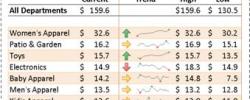
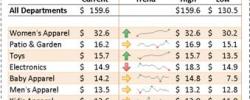
Sparklines are tiny charts that is used to fit in a cell to visually summarize trends beside the data. 

Sparklines are an extremely useful and user friendly feature in Microsoft Excel that allow you to create small, visual representations of data trends within individual cells.

These tiny charts provide a compact way to display trends, variations, and patterns in your data without taking up a lot of space. Sparklines are particularly useful when you want to quickly analyze data at a glance or within a confined area, such as a cell or a small column.

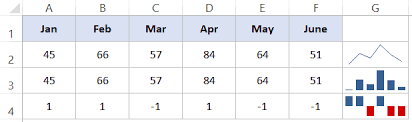
There are three main types of sparklines in Excel:

  1. Line Sparklines: Line sparklines show trends over a period of time. They are typically used to display data points in a line chart format, helping you visualize trends, fluctuations, and patterns over time.
  2. Column Sparklines: Column sparklines are used to compare values among different data points. They can help you identify variations and relative sizes of data within a specific context.
  3. Win/Loss Sparklines: Win/loss sparklines are used to represent binary data, often indicating “win” or “loss” scenarios. These are typically shown using icons or symbols to denote positive or negative outcomes.

Since sparklines show trends occupies less space, they are exclusively useful for dashboards and other places where we need to show a glimpse of the business in an simple practical visual format.

In the image to the left, the sparklines that appear in the Trend column lets us have a quick look of the performance of each department in the month of May.

If you want to join our Excel course in Singapore & improve your skills, we have multiple courses – Basic Excel for Analytics, Advanced Excel Courses in Singapore & VBA Macro Programming Courses.

Key features and benefits of Spark Lines in Excel include:

  • Compact Representation: Sparklines are designed to fit within individual cells, making them an efficient way to provide data insights in a constrained space.
  • Visual Analysis: By using simple visual cues, sparklines allow you to quickly identify trends and patterns, even without delving into detailed data analysis.
  • Easy to Create: Creating sparklines in Excel is straightforward. You can insert sparklines through the “Sparkline Tools” tab on the Excel ribbon after selecting the data range you want to visualize.
  • Dynamic Updates: Sparklines are dynamic, meaning they update automatically when you change the data or adjust the range they’re based on.
  • Conditional Formatting: You can apply conditional formatting to sparklines, enhancing their visual impact. For example, you can color-code sparklines based on specific conditions, making trends more apparent.
  • Compatibility: Sparklines are available in most modern versions of Excel, including Excel 2010 and later.

To Create Spark lines in Excel:

  1. Select the cell where you want the sparkline to appear.
  2. Go to the “Insert” tab on the Excel ribbon.
  3. In the “Sparklines” group, choose the type of sparkline you want (Line, Column, or Win/Loss).
  4. Select the data range you want to visualize.
  5. Click “OK,” and the sparkline will be generated within the selected cell.

Remember that while sparklines provide a quick and visual overview of data trends, they might not replace the depth of analysis that larger charts or graphs can offer. Use sparklines in scenarios where space is limited and you need to provide a concise snapshot of data trends.

When and where is the best use of Excel sparklines

Excel sparklines are best used in situations where you need to provide a quick and concise visual representation of data trends within a limited space.
They are particularly effective when you want to highlight trends, variations, and patterns in your data without the need for extensive data analysis. Here are some scenarios where Excel sparklines can be most beneficial:
  1. Dashboards and Reports: Sparklines are ideal for creating dashboards and reports that require a compact presentation of key performance indicators (KPIs) and trends. You can include multiple sparklines in a small area to provide an overview of various metrics.
  2. Tables and Data Lists: When working with data tables or lists, you can add sparklines next to numeric data to provide context and visual insight into how values are changing over time or between categories.
  3. Financial Data: Use sparklines to visualize changes in financial data, such as stock prices, revenue, expenses, or budget allocations. Line sparklines can help show trends over time, while column sparklines can highlight variations between categories.
  4. Project Management: Incorporate sparklines in project management to illustrate task completion, project progress, or resource allocation. For instance, you can display task completion rates using win/loss sparklines.
  5. Sales and Marketing: Use sparklines to represent sales figures, conversion rates, or website traffic data. These visualizations can help sales and marketing teams quickly assess performance.
  6. Comparative Analysis: When comparing data sets or categories, column sparklines can show relative values and trends, making it easy to identify patterns and outliers.
  7. Scorecards: In performance scorecards or performance reviews, sparklines can visually summarize an individual’s progress or achievement over time.
  8. Educational Purposes: Sparklines can be used in educational materials to help students understand data trends and patterns, making learning about data analysis more engaging.
  9. Emails and Presentations: Incorporate sparklines in emails or presentations to provide a quick visual representation of data trends without overwhelming the audience with extensive charts.
  10. Data Visualization in Cells: In spreadsheets where you need to keep the data and visualizations together, sparklines offer a convenient way to incorporate visual insights directly into the data cells.

While sparklines are excellent for providing quick insights, they might not replace the need for more detailed charts and graphs in situations where deeper analysis is required.

Additionally, when using sparklines, it’s essential to ensure that the data you’re visualizing is appropriate for the type of sparkline you’re using (line, column, or win/loss) to ensure accurate representation.

What are Slicers in Microsoft Excel

Excel Slicers Sample

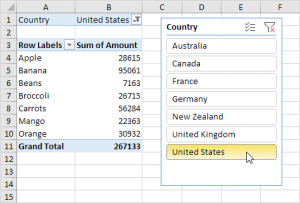
Slicers are visual controls. They let us quickly refine data in a PivotTable in an interactive, automatic manner. If we insert a slicer, we can use buttons to quickly segment and refine the data to display appropriate results.

Not only that, when we apply more than one filter to the PivotTable, we no longer have to open a list to see which filters are enforced to the data. Rather, it is displayed on the screen in the slicer.

We can make slicers relate to the workbook formatting and easily reuse them in other PivotTables & PivotCharts.

Slicers provide an intuitive and user-friendly way to filter and analyze data without the need to access complex filter menus or dialogs.

Slicers create buttons or visual elements that you can click or select to filter data, making data analysis more dynamic and accessible.

When you insert a slicer into an Excel workbook, it creates a dashboard-like interface where users can easily filter data by clicking on specific elements. Slicers are especially useful for large datasets and complex reports where traditional filtering methods might be cumbersome.

When to Use Slicers in Excel:

  1. Pivot Tables and Pivot Charts: Slicers are primarily designed to work with pivot tables and pivot charts. They enhance the usability of these tools by providing a simple way to filter and slice data dynamically.
  2. Large Datasets: When dealing with large datasets, using traditional filter dropdowns can be overwhelming. Slicers offer a more user-friendly experience by visually representing filtering options.
  3. Interactive Dashboards: If you’re creating interactive dashboards or reports, slicers can be a great addition. Users can quickly filter data to focus on specific aspects of the report.
  4. Data Exploration: When you want to explore data trends and patterns quickly, slicers allow you to filter data on the fly without the need to constantly modify filter settings.
  5. Collaborative Work: Slicers are particularly useful in collaborative environments where multiple users need to analyze data. They provide a consistent and easy-to-understand filtering interface.
  6. Sales and Marketing Analysis: Slicers are beneficial for sales and marketing reports where you want to analyze data by different criteria such as time periods, regions, products, or customer segments.
  7. Comparative Analysis: Slicers can be used to compare data across different categories, allowing you to instantly switch between various data subsets for comparison.
  8. Data Visualization: When creating presentations or reports for non-Excel users, slicers provide a more intuitive way to interact with and explore data.

How to Use Slicers in Excel:

  1. Create a Pivot Table or Pivot Chart: Before adding slicers, you need to create a pivot table or pivot chart based on your data.
  2. Insert Slicer: Go to the “PivotTable Analyze” or “Analyzing” tab on the Excel ribbon, then click on the “Insert Slicer” button. Choose the fields you want to use as slicers.
  3. Arrange Slicers: Once inserted, arrange the slicers on your worksheet as needed. You can resize them, move them around, and align them to create an organized layout.
  4. Filter Data: When you interact with a slicer by clicking on an element (e.g., selecting a specific category or time period), the associated pivot table or pivot chart will instantly update to show the filtered data.
  5. Multiple Slicers: You can insert multiple slicers based on different fields to provide more comprehensive filtering options.

Remember that while slicers are a fantastic tool for interactivity and data analysis, they are best suited for scenarios involving pivot tables and pivot charts. For traditional data tables, you might want to stick with standard filtering options.

excel trainingIf you would like to learn more about these new features of Microsoft Excel, or would like to attend the Advanced Microsoft Excel Training, do contact us at Intellisoft Systems.

If you have any further questions or want to join a training on how to use Sparklines, contact Intellisoft for Corporate Training on Excel or call at +65 6250-3575.

Trainer: We have certified trainers who excel in imparting their knowledge and are very patient. Master Trainer Vinai teaches Advanced Excel Techniques, Dashboard Techniques using Excel,  Advanced Data Analytics & Data Visualization Training courses at Intellisoft.

Vinai has trained over 15,000 students in over 18 countries, and regularly conducts Excel Workshops in Singapore, Malaysia, Indonesia, Australia, India, Dubai, Egypt, Zimbabwe, South Africa etc.

Free Tips, Tutorials & Training Grants Info

Learn from expert tips, tricks and resources for Excel, PowerPoint, Photoshop, Python, Power BI, Project Management, IT, Soft Skills & more with our Email Newsletter.
Plus get the latest news on Grants. Join Today!

Found What You Were
Looking For?

Just Tell us...

We're Here To Help You!